
Importing from another analytics service
Moving from another analytics tool? Import your past data so you keep your history.
Each service has its own guide, from the export to what you find in Minilytics afterwards.
- Done: Umami
- Done: Matomo
- Not done yet: Google Analytics (planned)
- Not done yet: Plausible (planned)
- Not done yet: Simple Analytics (planned)
Your service is not supported yet? Suggest it or contribute a new importer on GitHub.
From the dashboard#
- Export your data from your current service, as its guide explains.
- In Minilytics, click Import Data, or Add New Website then Import past data.
- Choose the service and upload the export. Minilytics shows how many visits it found and the period they cover.
- Create a new website for this data, or add it to one you already track. For a new website, the name and domain are filled in from the export, so you only need to check them.
- Click Import data. A new website also gets its tracking tag, so new visits keep coming in after your history.
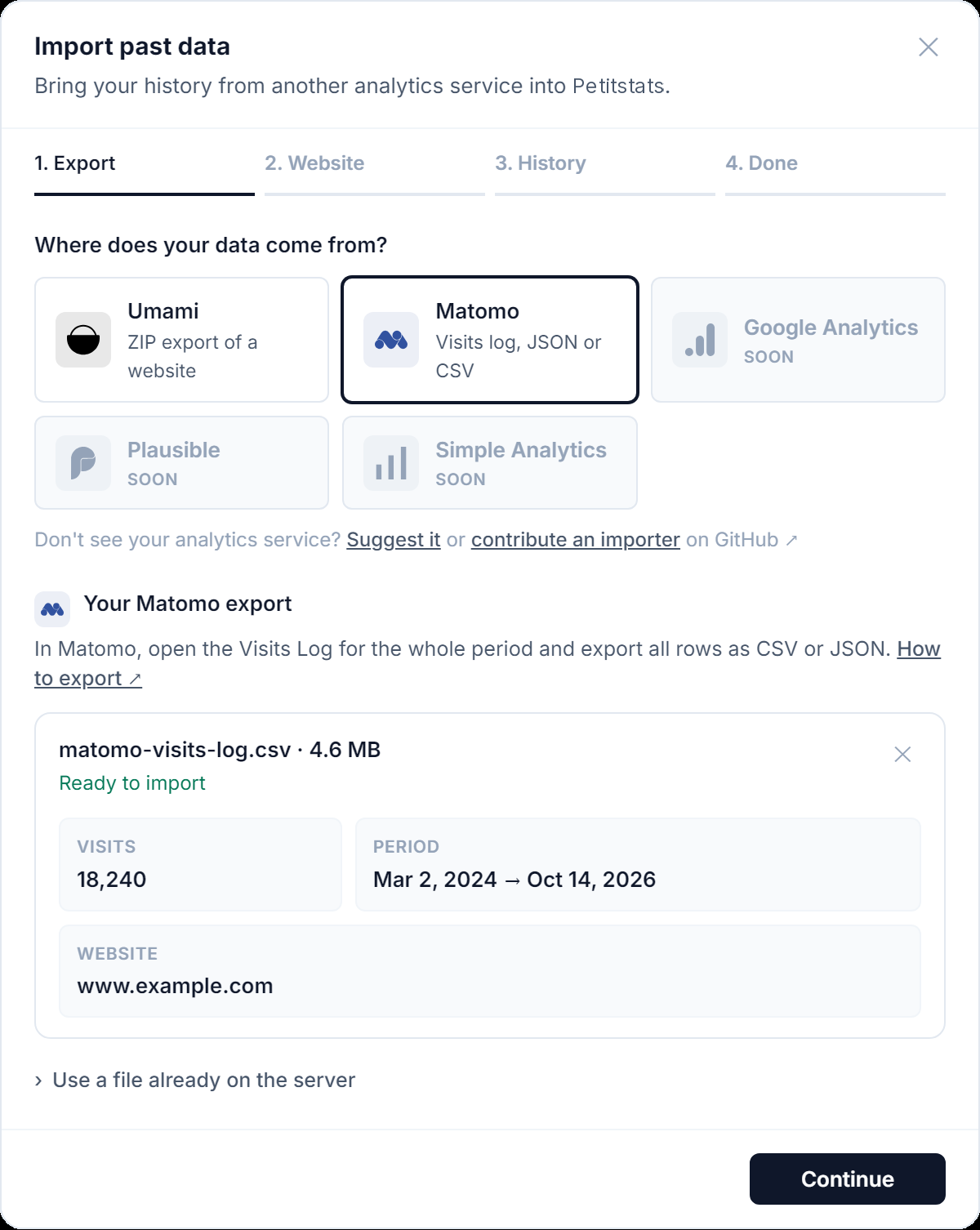
Importing the same export twice does not count your visits twice. You can import a newer export of the same website at any time, and only the new visits are added.
Very large exports may exceed your server's upload limit. In that case, raise the limit as explained in Operations, or use the command line below.
Keeping all your history#
Each website keeps its visits for a limited time, about 13 months by default (see Website settings). If your export goes further back, Minilytics asks what to do before importing. You can keep the website's visits longer, up to about 25 months, so your whole history is imported, or keep the current setting and leave the older visits out. You can change this later in Settings → Tracking.
From the command line#
If you can open a terminal on your server, run this command from the Minilytics folder.
php bin/import.php --provider matomo --file matomo-visits.csv --site-id my_siteReplace matomo with the service your export comes from, and my_site with the identifier of the website that receives the data. The guide of each service gives its exact command. Run php bin/import.php --help to see every option.