
Operations and storage
Accounts#
The first time you open the dashboard, you create the administrator account. Nobody else can sign up on their own.
To give someone access, open Settings → Access and click Create invitation link. Each link works once and expires after seven days.

Where your data is stored#
Minilytics keeps its data in a minilytics-data folder next to your website's folder, out of reach from the web. To use another folder, set the MINILYTICS_DATA_DIR environment variable on your server.
By default, each website gets its own small database file, with nothing to install. You can also store your analytics in a MySQL or MariaDB database, as explained below.
Visits are kept for 13 months by default. You can choose another duration for each website in Settings → Tracking.
Web server configuration#
On Apache and LiteSpeed, which most shared hosting providers use, there is nothing to set up. Minilytics comes with the right rules.
Nginx and Caddy need a few lines of configuration to keep the private files of Minilytics hidden and to accept large imports. When these rules are missing, the dashboard shows a warning to administrators.
Nginx#
server {
    listen 80;
    server_name analytics.example.com;
    root /var/www/minilytics;
    index index.html index.php;

    # Data imports upload ZIP archives of up to 128 MB.
    client_max_body_size 128M;

    # Application code, Composer files, databases and dotfiles are never served.
    location ~ ^/(vendor|src|templates|bin|tests)(/|$) { return 403; }
    location ~ \.(db|db-wal|db-shm|json|lock)$ { return 403; }
    location ~ /\.(?!well-known/) { return 403; }

    location = /minilytics.js {
        add_header Cache-Control "no-cache, must-revalidate";
    }

    location / {
        try_files $uri $uri/ =404;
    }

    location ~ \.php$ {
        try_files $uri =404;
        include fastcgi_params;
        fastcgi_param SCRIPT_FILENAME $document_root$fastcgi_script_name;
        fastcgi_pass unix:/run/php/php8.3-fpm.sock;
    }
}
Replace the fastcgi_pass address with the one of your PHP service, and keep the return 403 lines above the \.php$ block.
Caddy#
analytics.example.com {
    root * /var/www/minilytics
    encode gzip

    # Application code, Composer files, databases and dotfiles are never served.
    # /.well-known/ stays reachable for AI assistants to sign in.
    @blocked {
        path_regexp ^/(vendor|src|templates|bin|tests)(/|$)|\.(db|db-wal|db-shm|json|lock)$|/\.
        not path /.well-known/*
    }
    respond @blocked 403

    header /minilytics.js Cache-Control "no-cache, must-revalidate"

    # Data imports upload ZIP archives of up to 128 MB.
    request_body {
        max_size 128MB
    }

    # Serve index.html before index.php at the site root.
    php_fastcgi unix//run/php/php8.3-fpm.sock {
        try_files {path} {path}/index.html {path}/index.php
    }
    file_server
}
Large imports#
To import large exports with Nginx or Caddy, also raise these limits in your PHP settings (php.ini).
upload_max_filesize = 128M
post_max_size = 128M
memory_limit = 256M
max_execution_time = 300
max_input_time = 300
Behind Cloudflare#
If the domain where Minilytics runs goes through Cloudflare, turn on Minilytics is behind Cloudflare in Settings → Tracking. Without it, all your visitors seem to come from the same place, which mixes up visitors and countries. The dashboard suggests it when it notices Cloudflare.
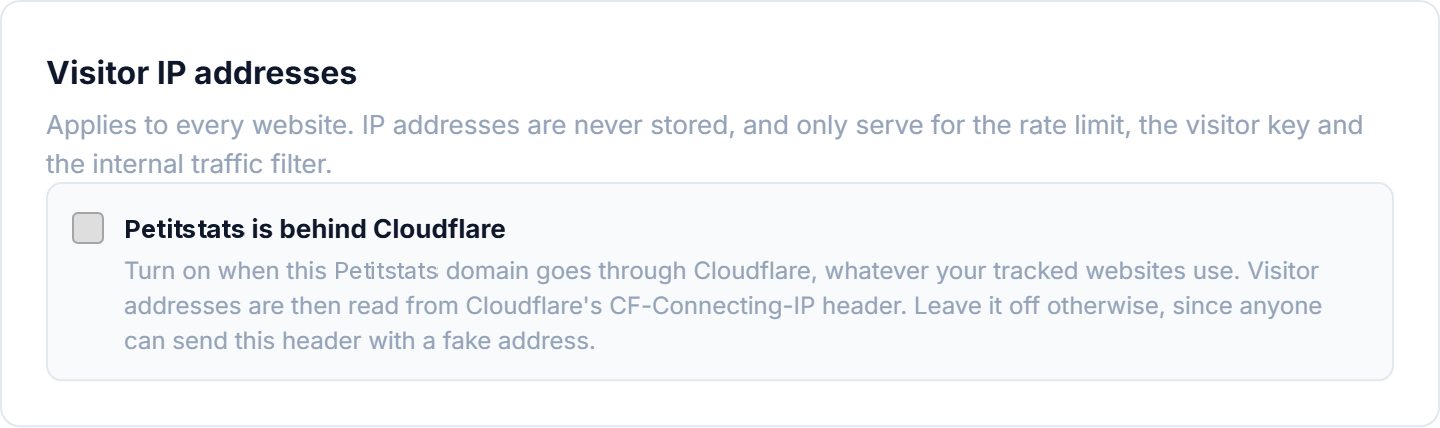
Only the domain of Minilytics matters here. Whether the websites you track use Cloudflare makes no difference.
Leave this option off if you do not use Cloudflare, and when it is on, make sure your server only accepts traffic coming through Cloudflare.
Using MySQL or MariaDB#
The default storage suits most websites. To use MySQL or MariaDB instead, follow these steps.
- At your hosting provider, create a database and a user for Minilytics.
- In Minilytics, go to Settings → Database, choose MySQL or MariaDB and enter these details.
- Click Test connection, then Save database connector.
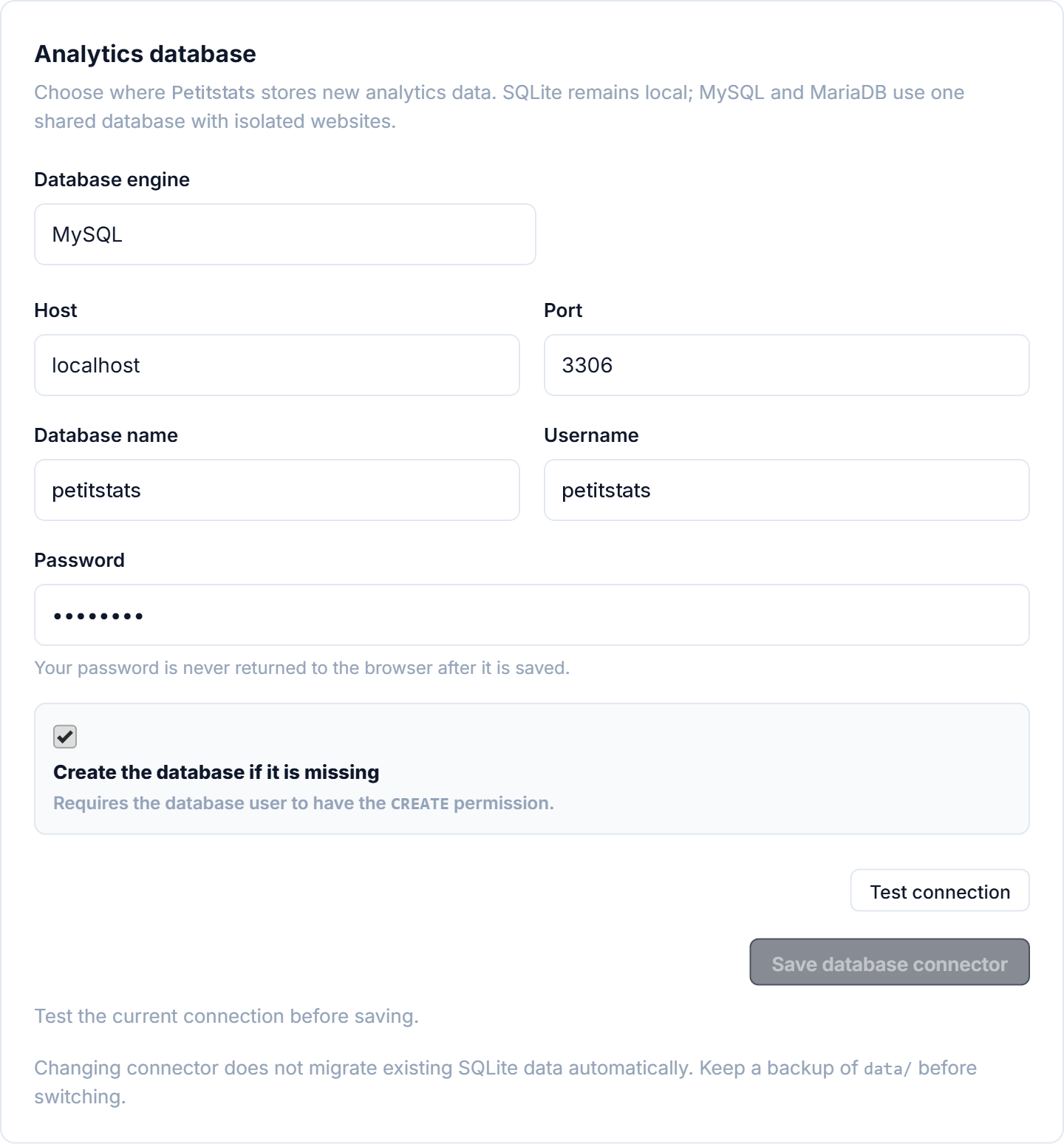
Your PHP installation needs the pdo_mysql extension, which most hosting providers enable. Analytics already collected are not moved to the new database, so back them up before switching.
Updates#
Settings → Updates shows the version you use and tells you when a new one is available. A small dot also appears next to Settings when it is time to update.
Before you install, it lists what changed in each release since yours. After an update, a What's new window shows these changes once, the next time the dashboard is opened in each browser.
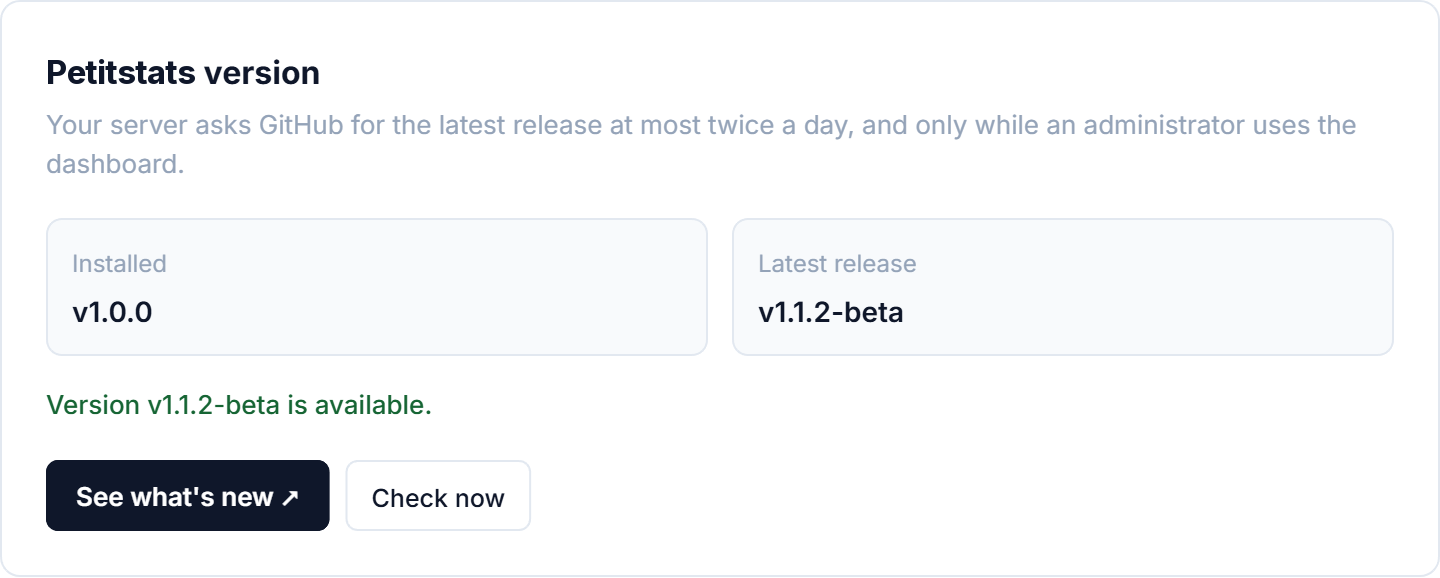
To update, click Install in Settings → Updates. Minilytics keeps a backup of its current files, installs the new version, and reloads the page. It is unavailable for a few seconds while this happens.
If something goes wrong, Minilytics goes back to the version you had and tells you why. To return to the previous version later, click Go back to in Settings → Updates.
Your analytics, accounts and settings are never touched by an update. Other files you keep in the same folder, such as a landing page, are left alone too. The .htaccess file is part of Minilytics, so save your changes to it first if you edited it.
If your server does not allow Minilytics to update itself, Settings → Updates tells you, and you can update by hand instead.
Restoring the backup by hand#
In the rare case where Minilytics cannot go back to the previous version itself, Settings → Updates tells you so. Copy everything in updates/backup/files from the data folder over the folder where Minilytics is installed, with a terminal, your hosting provider's file manager or FTP. Then delete updates/state.json and updates/maintenance from the data folder.
Updating by hand#
You can also update by downloading the latest archive and extracting it over your current installation, just like when you installed Minilytics. Run these commands in the folder where Minilytics is installed.
curl -LO https://github.com/axthauvin/minilytics/releases/latest/download/minilytics.tar.gz
tar -xzf minilytics.tar.gz && rm minilytics.tar.gz
Without a terminal, download minilytics.tar.gz from the latest release, extract it on your computer, and upload its files over the old ones with your hosting provider's file manager or FTP.
Your analytics, accounts and settings are kept, because they live in the data folder, outside the files you replace. If you edited the .htaccess file, save your changes first, since the archive replaces it.
Backups#
To back up your analytics regularly, schedule this command on your server.
php bin/backup.php --destination /secure/backups/minilyticsKeep the backups on another disk or machine, so that a disk failure does not take them with your data. If you use MySQL or MariaDB, use the database backups of your hosting provider instead.